 Lead Recovery Desk
Gmail or Outlook contacts
Take the customers out of your address book.
Export saved contacts, then make a customer-only copy. Your mailbox may also contain friends, staff and suppliers who do not belong in a follow-up list.
Before you begin
Use Google Contacts or Outlook People on a computer. This exports saved contacts; it does not turn your email conversations into a customer list.
Work on a copy. Keep the original export safe. Remove unwanted rows and sensitive columns from the copy you will upload.
A CSV of relevant business contacts, with unrelated people and private address-book fields removed from the upload copy.
A CSV is a simple table saved as a file. It is not an email campaign.
Prepare your file
Use the instructions for your app. Menu names can differ by version and account permissions.
Decide who belongs in the file
Identify people who enquired about or bought from this business. Being in your address book does not establish that they agreed to receive follow ups. Keep your existing opt-out records.
Google Contacts: select, then export
Open contacts.google.com. Select the contacts you need, choose More actions → Export, then Google CSV and Export. A label can help you find the right people; check the selection before exporting.
New Outlook or the web: export a contacts folder
Open People. In new Outlook, choose Export contacts. On the web, look under Manage contacts → Export contacts. Choose an available contacts folder and export the CSV.
A contact list or group is not the same as a contacts folder. If the export includes too many people, remove unwanted rows from a working copy afterward.
Classic Outlook: use the export wizard
Choose File → Open & Export → Import/Export → Export to a file → Comma Separated Values. Select the Contacts folder, choose a filename, and finish. Use Microsoft’s guide below for your version.
Make the upload copy smaller
Inspect the CSV in a spreadsheet. Keep the relevant email and name columns; rename your chosen email column to email. Remove personal dates, home addresses, notes and unrelated contacts. Save a CSV copy.
Review what the address book cannot tell you
A contact’s birthday, date added or last edited date is not a last-contact date. Leave unknown dates blank. Check any separate unsubscribe records before considering follow ups.
What your file should look like
Original LRD example with invented contacts. This illustrates the file you are preparing, not your provider’s screen.
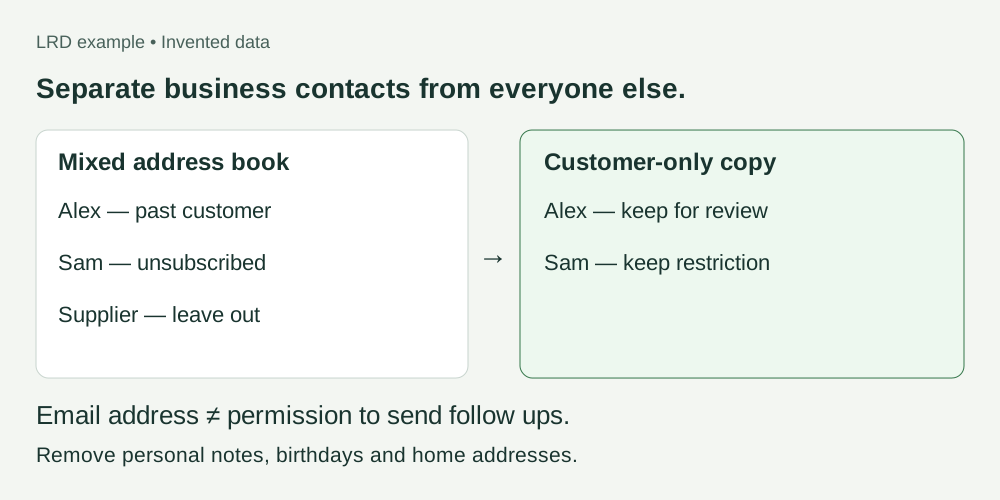
Keep it useful. Keep it private.
Keep the information needed for review and any known contact restrictions. Do not invent missing dates or permission.
Keep in your working copy
- email: the contact’s email address
- name: the person or business name, if useful
- last_contacted: a real last-contact date, if known
- status: preserve known unsubscribes, bounces and do-not-contact records
- source: where the record came from
Leave out of the upload
- Staff, suppliers and personal contacts
- Sensitive notes, health information and information about children
- Passwords, payment details and unnecessary addresses
- Birthdays, anniversaries and personal contact notes
Next: preview it in LRD
Check the detected columns, dates and restrictions before confirming anything. Use last_contacted for the last contact date and status for a contact’s recorded status.
CSV, TSV or plain text. Excel workbooks and ZIP files cannot be uploaded directly. Free previews share a 100-row allowance each calendar month across all lists.
Warm, Lukewarm and Cold group contacts by recency. They do not prove permission to contact someone. A file preview sends nothing.
Preview my list free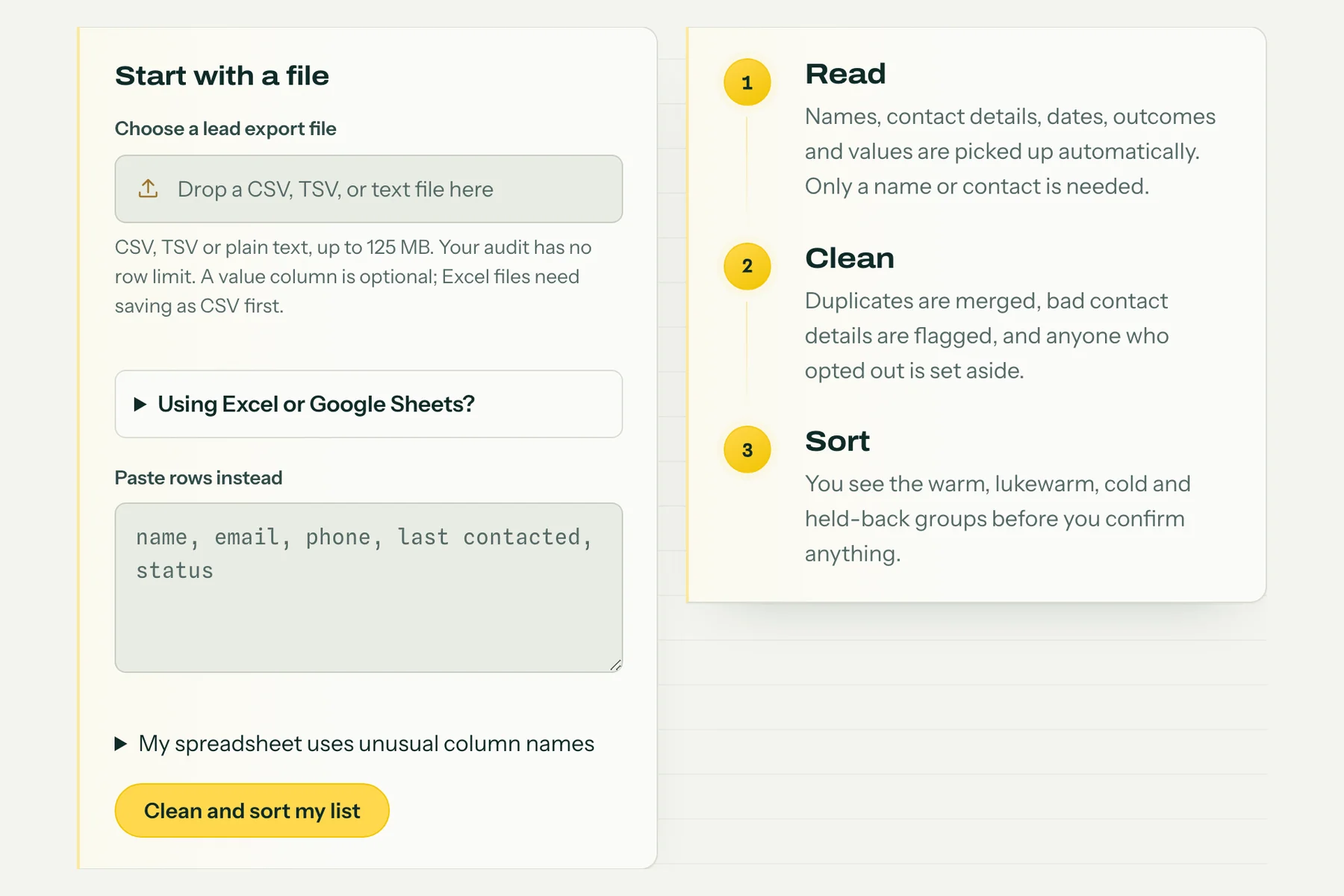
Upload your full export. Confirming a list decides what the Desk works with; it sends nothing.
If something looks wrong
The people I email are missing from the export
An address suggested when you write an email may not be a saved contact. Check the actual Contacts or People list. Do not scrape your inbox to build a mailing list; start with records that establish the business relationship.
My file is Excel, PDF or a ZIP
For Excel, save or download a CSV copy. Extract a ZIP and inspect the files inside. A PDF or a picture is not a contact table; ask your source system for a CSV export. Renaming a file to .csv does not convert it.
Dates or columns look wrong in the preview
Stop before confirming. Check the column headings and use YYYY-MM-DD for dates, such as 2026-02-18. Do not use the export date as a last-contact date. If the source has no reliable date, leave it blank and review the result.
I do not know whether someone can be contacted
Keep the original restriction records. Do not turn an unknown or unsubscribed status into subscribed. The file preview does not establish permission. Ask for help before using those contacts for follow ups.
Still stuck? Ask for help with the app name and column headings. Do not send customer rows or passwords.
Official instructions
Checked 7 September 2026. These links include the provider’s own instructions and screenshots where available.